
eBaker: How To Guide
A complete guide to every button, setting, and map eBaker can produce.
Before You Start
eBaker doesn’t bake anything itself, it hands your files to a hidden, invisible copy of Blender, which does the actual work, then hands the results back. You never see Blender open; it runs silently in the background the whole time.
- Blender installed somewhere on your computer.
- A high-poly mesh (the detailed version) and a low-poly mesh (the simplified version), both exported as .obj or .fbx.
- The low-poly needs a UV layout, that’s what every bake is actually painted onto.
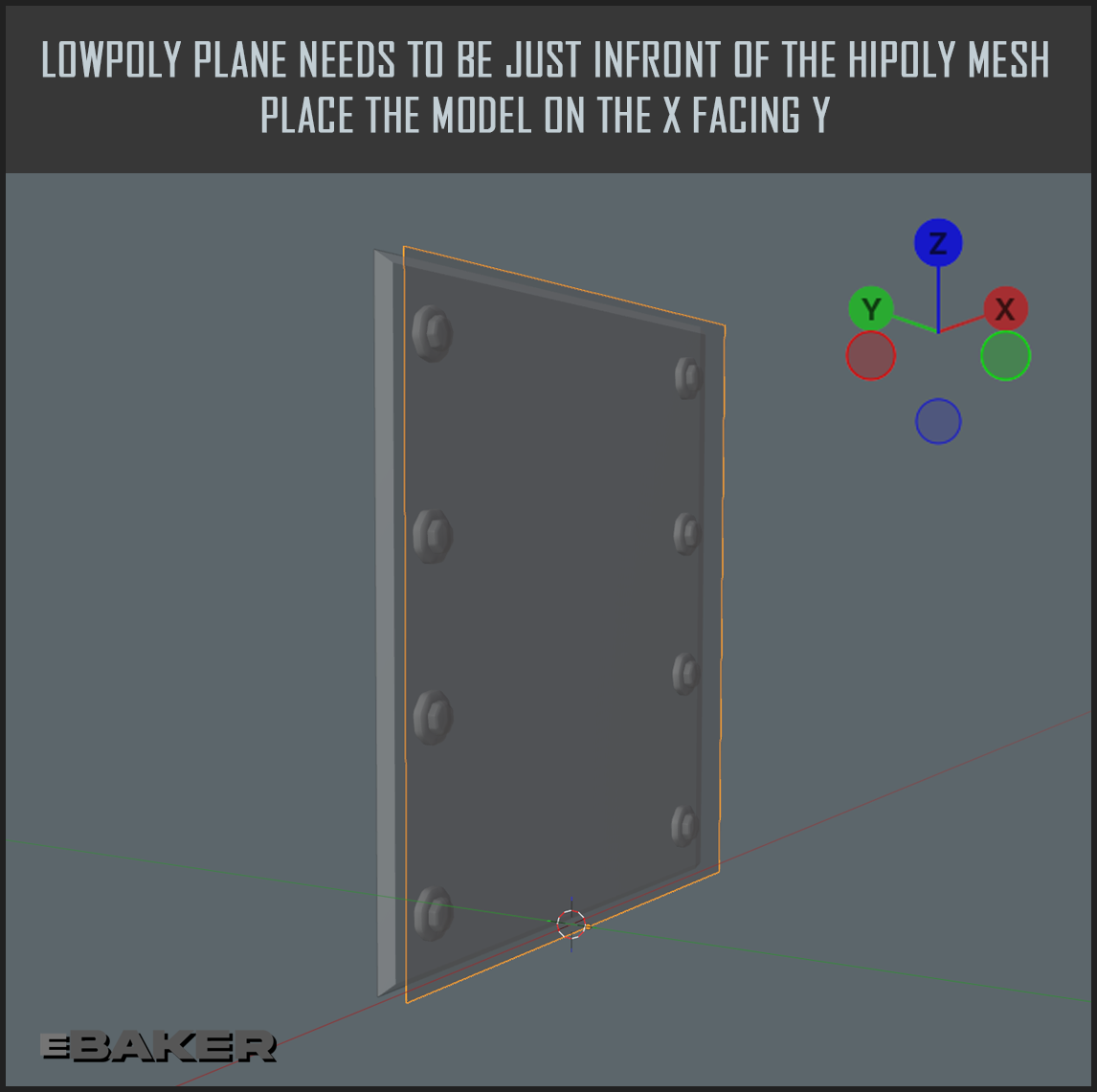
Suggested Blender model setup:
The filepickers:
- High Poly
- Your hi-poly detailed mesh.
- Low Poly
- Your flat plane mesh, with UVs.
- Output Folder
- Where the finished PNGs get saved.
- Blender Executable
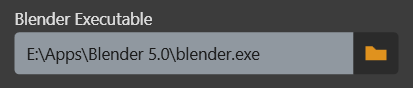
- Point this at your blender.exe once. It’s remembered after that, so you only do this the first time. “Open folder after bake” just pops the output folder open in Explorer once a bake finishes, if you want it to.
Map Size
- Size
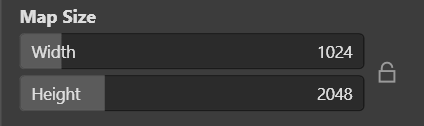
- The width and height of every map, in pixels. Drag or type a number and it snaps to the nearest one automatically. The lock icon will lock both sizes to move as one.
Other Settings
- Edge Padding
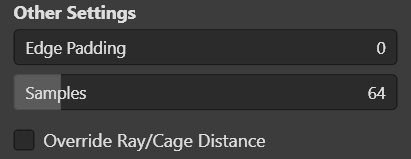
- How far bake results bleed past the edge of each UV island. Keeps seams from showing a thin line of the background color once the texture is compressed or mipmapped. Higher = safer, but takes a little longer to bake.
- Samples
- How many times each pixel is sampled while baking. Higher looks cleaner (less speckly noise) but takes longer. Only really matters for maps that involve real lighting or ray tracing (AO, Diffuse Lighting, Matcap’s Valley/Ridge effects) – it makes very little difference to Normal or Diffuse.
- Override Ray/Cage Distance
- Off by default – eBaker figures out sensible values automatically from your model’s own size. Only turn this on if a bake is missing detail that should be there (usually recesses or tight gaps not being picked up from the high-poly). Turning it on reveals:
- Ray Distance
- How far Blender searches, in both directions, to find the high-poly surface from each point on the low-poly.
- Cage Extrusion
- How far the low-poly is puffed outward before that search happens, to avoid the search starting from inside the high-poly by mistake. If you’re not sure what these do, leave Override off – the automatic values are correct for the vast majority of models.
Maps to Bake
Each of these is an independent on/off toggle. Turn on as many as you want, then hit Start Baker once they all bake together in one run.
Bake Diffuse

The base color from your high-poly’s own material, transferred onto the low-poly’s UVs. Straightforward color transfer, no lighting involved.
Bake Normalmap
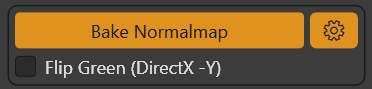
The classic tangent-space normal map, carrying all the fine surface detail (bevels, edges, small sculpted marks) from the high-poly onto the low-poly.
- Flip Green (DirectX -Y)
- Flips the green channel. Turn this on if your target engine expects DirectX- style normal maps instead of OpenGL- style (Unreal wants this on; most others don’t). If in doubt, check your engine’s own documentation.
Bake Heightmap
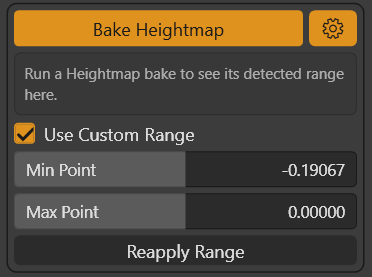
EXPERIMENTAL. A grayscale map of how far the high-poly sits above or below the low-poly’s own surface at each point – useful for displacement or parallax effects. Blender has no built-in “height” bake type, so this is eBaker’s own approximation of one.
How the black/white range gets decided: the hardest part of any heightmap isn’t measuring the height itself – it’s deciding what counts as pure black and pure white. Two things can quietly wreck that range if left unhandled, and eBaker corrects for both automatically:
- A flat, uninteresting backside. Anything with real thickness (a brick wall with a flat slab behind it, for example) has two very different surfaces on one mesh – the detailed front, and a plain flat back. If the back gets included when picking the range, it stretches the black/white points far wider than the front detail actually needs, squeezing all the real variation into a handful of gray values. eBaker only looks at whichever side faces the same way as most of the surface (the front) when deciding the range, so a flat backside can’t steal any of it.
- Open gaps with nothing behind them. A genuine hole in the surface (open mortar joints between bricks, for instance) can make the high-poly search miss entirely at that one spot, landing on a wildly wrong number. eBaker throws out anything that couldn’t physically be a real hit (further away than the search was ever allowed to look), plus a small handful of remaining extreme values, so a few bad spots can’t blow the whole range open.
Together, this means the default result should already use its full black-to-white range for real detail, instead of wasting most of it on things that shouldn’t count – no Photoshop Levels banding from a wasted range.
- Last Bake Readout
- A read-only box showing the exact Min, Max, and Mean values eBaker used for the most recent Heightmap bake, and whether they came from auto-detection or your own manual numbers. Use these as your starting point if you want to pick your own range by hand instead.
- Use Custom Range
- Off by default (auto-detect, described above). Turn it on to set your own exact Min Point / Max Point instead – the same idea as xNormal’s own tone-mapper sliders, for the rare case the automatic front/back split guesses wrong for a particular model.
- Min Point / Max Point
- Your own manual black/white values, only used when Use Custom Range is on. Check the Last Bake Readout box first for sensible starting numbers before typing in your own.
- Reapply Range
- The slow part of a Heightmap bake is Blender searching the high-poly surface for every single pixel; turning that result into a picture with a different Min/Max is comparatively instant. This button skips the slow search entirely and reuses the last full bake’s own saved data, so trying a new range takes seconds instead of minutes. It needs at least one full Heightmap bake to have run first, and the saved data goes stale if you change the High Poly, Low Poly, or Map Size afterward – do one more full bake after any of those before using Reapply Range again.
Bake AO

Ambient occlusion – a grayscale map that’s dark in crevices and tight gaps, bright on open, exposed surfaces. Standard stuff, used on its own or combined with other maps in an engine or in Photoshop.
Bake Curvature

A grayscale edge map: bright on convex edges and corners, dark in concave crevices, neutral gray on flat surfaces. Useful on its own for adding wear/dirt effects later, and used internally by the Matcap step below (see Ridge Strength).
Bake Matcap
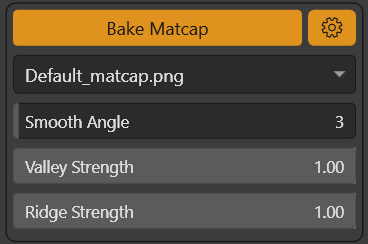
Renders a single square picture of your HIGH-POLY, shaded with a chosen matcap image, the same kind of quick “fake lighting” preview ZBrush’s own matcap materials give you. This is different from every other map here: it’s an actual picture taken from straight in front of the model, not a flattened texture. matcap images located in /Matcaps Drop your matcap image files into the app’s own /Matcaps folder (next to the .exe) and they’ll show up in this list. A note on ZBrush: ZBrush’s own matcap materials are saved as .ZMT files, which is a different, closed format – eBaker (and Blender) can’t read those directly. To get a plain image out of one: in ZBrush, with the matcap active, use Material > Modifiers > Create MatCap Texture, then export that texture from the Texture palette as a PNG or TIFF. That image is what goes in /Matcaps.
- Smooth Angle
- Sets the threshold angle for automatic smoothing. Rounds off genuinely curved surfaces while keeping real sharp edges crisp, so fine carved detail doesn’t get blurred into mush. Lower numbers treat more bends as “real edges” (good for hard-surface models with lots of flat panels and small details); higher numbers only treat very sharp folds as edges and smooth everything else (better suited to genuinely round/organic shapes). 0 turns this off entirely.
- Valley Strength
- Cavity intensity. 0 turns it off. Darkens crevices by blending the AO map onto the matcap picture.
- Ridge Strength
- Edge highlight intensity. 0 turns it off. Brightens edges by blending the Curvature map onto the matcap picture. Valley and Ridge together recreate the “Cavity” look you get in Blender’s or ZBrush’s own viewport for free while you’re sculpting – since a real render doesn’t have that trick built in, these two add it back deliberately. Output naming: matcap renders are saved as <matcap name>.png, so trying several different matcaps builds up a small set of pictures side by side instead of overwriting the same file each time.
Bake Diffuse Lighting
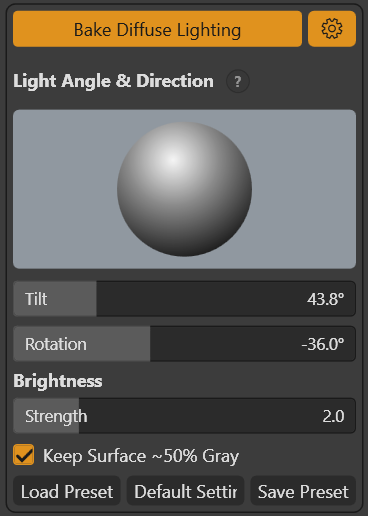
A single fake sun light baked onto the low-poly, giving a soft shaded look without needing a real lighting setup – similar in spirit to Substance Painter’s baked-lighting preview trick.
- Light Angle & Direction (the square pad)
- Drag inside the square to set both the light’s tilt and direction at once. Click the small “?” button next to the header for an in-app reminder: center of the pad = light pointing straight down (short, soft shadows); the further out toward the edge you drag, the more the light rakes in sideways (long, dramatic shadows).
- Tilt / Rotation
- The same two values as the pad above, as plain numbers, in degrees – useful for typing an exact angle instead of dragging.
- Strength
- How bright the light is.
- Keep Surface ~50% Gray
- When this bake is meant to be used as a Photoshop Overlay layer, the “neutral” point is 50% gray – anything above lightens what’s underneath, anything below darkens it. Tilting the light changes how much of it actually reaches the surface, which normally means re-tuning Strength by hand every time you change the angle. This checkbox does that automatically – it finds the model’s main flat face and solves for whatever brightness lands it back at 50% gray, regardless of the light’s angle.
- Save Preset / Load Preset
- Save the current Light Angle & Direction, Strength, and related settings as a named preset (a .ebl file, stored in /Presets), or load one you saved earlier. Handy for keeping a couple of “house style” lighting setups around instead of redialing them by hand every time.
- Default Settings
- Resets just the lighting setup (direction, brightness) back to known-good defaults. Doesn’t touch your file paths, Map Size, Other Settings, or which maps are toggled on.
Start Baker

Runs every map you’ve toggled on, one after another, in a single Blender session. The progress bar at the bottom shows which map is currently baking and how far through the whole batch you are.
If something goes wrong, you’ll get a message saying Blender exited with an error – that usually means something’s off with the input files themselves (missing UVs, a corrupt mesh, an unreadable matcap image, etc.) rather than eBaker.